About BrainrotIO
BrainrotIO opens on a bright jungle-style menu with a long creature, a Play button, a skin option and a speaker control. Pressing Play reveals several modes, including a two-minute Quick Play option and longer or differently framed choices. The checked session selected Quick Play. The next screen had a timer, score, leaderboard, collectible dots and a growing creature moving through an arena.
The desktop test reached the arena and later showed a NICE TRY result with score 7, a new-best label and coins. That confirms a complete short attempt with an actual score. It does not establish the behavior of the other modes, matchmaking against real people or a particular steering control. GamePix describes collecting dots, growing longer and cutting off rivals; the checked run supports the arena and score loop, not every outcome in that description.
A Brainrot Creature in an Arena
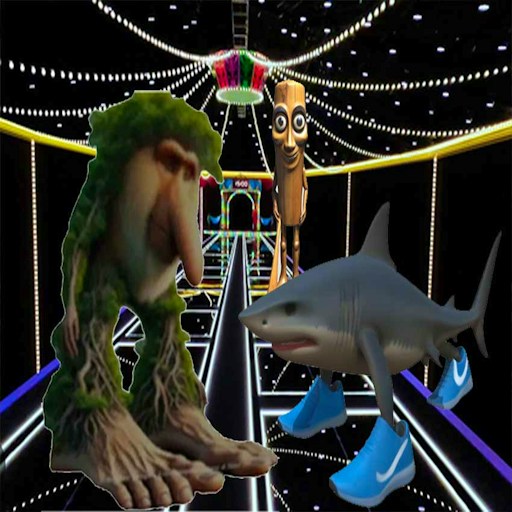
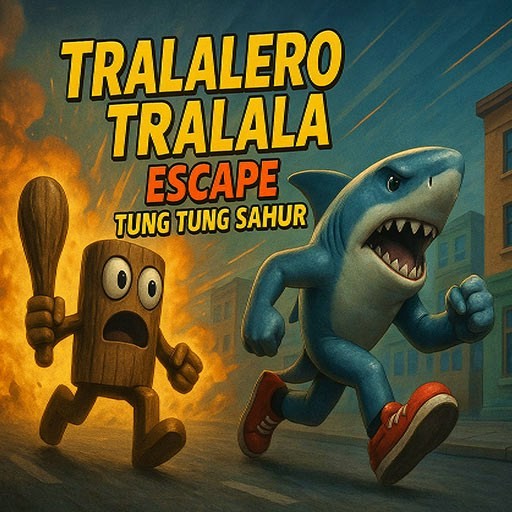
The creature designs and skins use the Italian brainrot cast rather than a plain snake. The absurd character shapes are visual flavor around a familiar collect-and-survive arena objective.
How to Play BrainrotIO
Start the official GamePix player, then press the game's large Play button to open the mode menu.
Choose Quick Play for the short timed format verified here. The other visible modes have different labels and rules that were not tested in this session.
Guide your creature through the arena and look for glowing dots while watching the score and timer. Avoid losing the run before the timer ends.
Read the result screen after the attempt. The checked run ended at score 7; MENU and RESTART were visible afterward.
Controls
- Play and Quick Play: Menu buttons used to enter the observed arena round.
- On-screen arena movement: Guide the creature toward dots; this test did not isolate a specific keyboard or pointer steering method.
- Speaker icon: Visible on the opening menu as an in-game sound control; its audio effect was not independently measured.
Tips & Tricks
- Try Quick Play first so you can see the timer, score and result screen before choosing a less familiar mode.
- Keep your attention on the creature's head and the nearest dot. The long tail and moving background can make a collision hard to anticipate.
- Treat a low first score as orientation data. The RESTART control makes another attempt available without returning to this site's catalog.
Choose a mode with a clear time frame
Quick Play describes a short competition and gives you a timer as soon as the arena appears. That made it the most direct way to verify a full session. Other modes are visible on the selection screen, but their behavior should be read from the current menu before you commit. A label such as Infinity or Boss Hunt is a promise about a different ruleset, not evidence that it was completed in this check.
If the mode menu does not react to one selection, wait for the button to settle and try the clearly labeled Quick Play button. In the recorded test, that path entered an arena with a live timer and score. The preview page's own Start control only loads the provider; the game's Play and mode choices are separate steps.
Read the result, not just the leaderboard
The arena shows colored dots and a ranking list. It is tempting to infer a human multiplayer match from those names, but the checked session did not confirm how opponents are generated. The reliable observed result is the end screen: NICE TRY, score 7, a new-best indication and a small coin reward.
A short attempt can end from a collision or another rule before the full timer is spent. The test did not isolate the precise cause. Use the next run to change one movement choice at a time. That makes the score comparison more useful than simply repeating the same path.
Sound and device expectations
A visible speaker icon sits on the first menu, which gives you a place to look if you want to change the game's sound setting. We did not independently listen to the output, so this page does not promise a silent start. Third-party loading screens or ads can also have controls separate from the game.
GamePix labels BrainrotIO desktop and mobile friendly, but the recorded result came from desktop Chrome. A 390-pixel layout check of this site's page confirms the catalog and player container fit on a narrow screen; it does not establish responsive touch steering inside the official game.
Why Play BrainrotIO Here
Choose BrainrotIO when you want a compact scored round with immediate feedback. It is different from a stage-based runner because the arena shows a live leaderboard and lets you restart after a result.