About Brainrot Mini Challenge
Brainrot Mini Challenge is a collection you can browse before deciding what to play. Its opening menu puts separate activities on illustrated cards, with a page indicator and an arrow to move through the selection. The first page includes Hide-and-Seek, Repair Stickman, Battle Royale, Brainrot Stickers, Plastic Surgery, and Fix Brainrot. That variety is the main attraction: you can choose the kind of interaction you want instead of committing to one long run.
The cards also give a useful preview of the tone. A wooden character wrapped in vines points toward a repair activity; a house full of numbered positions points toward hide-and-seek. These are exaggerated cartoon scenarios, and some involve damaged characters or pretend surgery. If you prefer a gentler starting point, the hide-and-seek card provides a clear sequence of choices without asking you to learn camera controls or manage a complicated inventory.
The Meme Behind Brainrot Mini Challenge
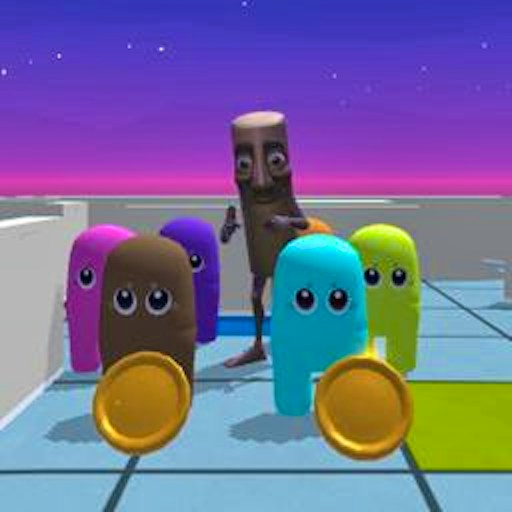
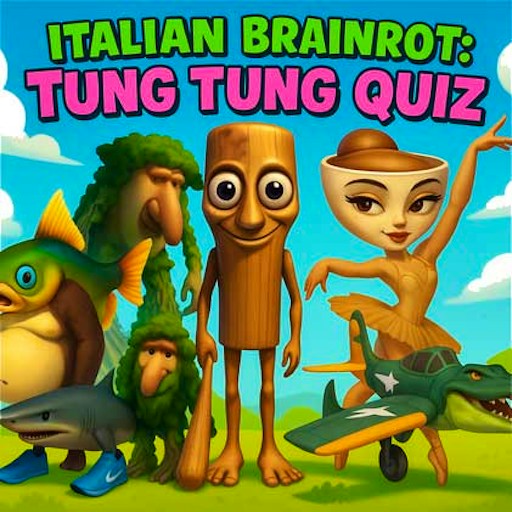
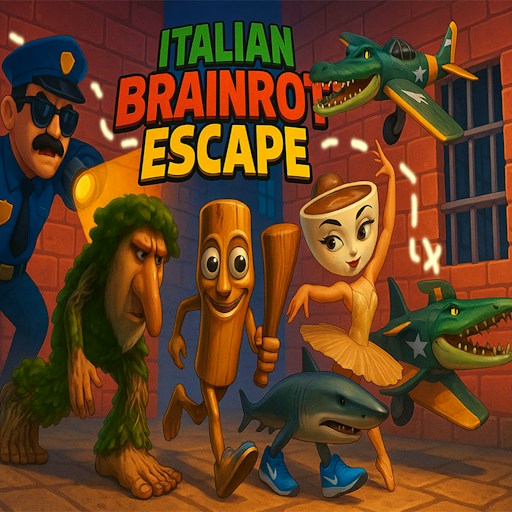
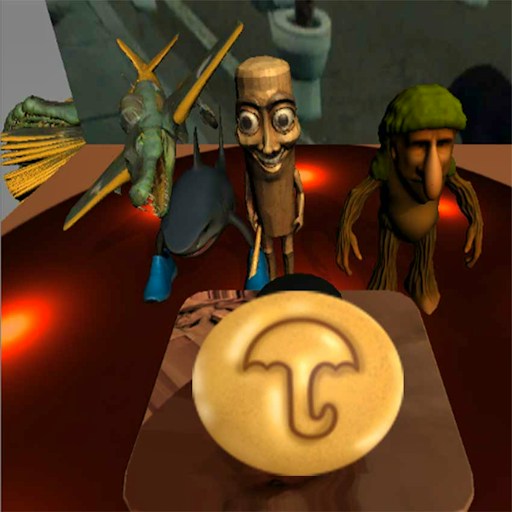
The character selection turns the brainrot cast into a little lineup of unusual silhouettes. You can spot animal and object combinations, a shark, a cup-shaped character, and a figure that looks partly like a tree. Knowing every name is unnecessary. In Hide-and-Seek, the character you choose receives a Player label on the house map, so you can follow your own piece even when several other figures appear nearby.
The humor comes from putting these mismatched characters into ordinary situations. A familiar apartment layout becomes a hiding board, while the menu treats repairing a wooden figure as an everyday chore. This browser collection is separate from Roblox experiences with similar themes. There is no Roblox account step in the opening flow: the game starts inside the embedded player, then lets you choose an activity from its own menu.
How to Play Brainrot Mini Challenge
Press Play now on this page, start the GamePix player, and wait for the game's Start button. The download screen and the activity menu are different steps, so give the first load time to finish. Choose Start to see the illustrated mode cards. The page indicator shows where you are in the selection; use the arrow beside it when you want to look through more options before choosing a card.
For a straightforward first try, choose Hide-and-Seek. A character panel appears over a view of the house. Click a portrait, check the selection highlight, and press Choose. Some portraits carry a small video symbol. You can begin with an ordinary unmarked choice; there is no need to select a reward option just to understand the basic game. The next screen asks you to choose your hiding spot.
The house map marks twelve positions with glowing numbered circles. Click one of those circles to place your selected character there. After the selection, the numbers give way to characters, and a green pointer identifies the Player. Watch the scene that follows so you can connect the choice you made with the outcome. The game handles the transition after your selection; this mode does not begin with a character you steer through the house using WASD.
Use the back arrow in the upper left when you want to leave a mode and inspect another activity. The speaker button controls sound, and the circular arrow provides an in-game restart control. Read the next activity's prompts before interacting: a repair task and a hiding choice need different actions even though they share the same collection. The site's Reload game button is a separate fallback that reloads the whole embedded player.
Controls
- Touch input: not verified on a physical phone; follow the game prompts if your device offers touch controls.
- Hide-and-Seek: Select a portrait, press Choose, then select a numbered hiding spot.
- Menu page arrow: Browse the next set of activities.
- Back arrow: Leave the current activity.
- Speaker icon: Toggle the game's sound.
- Circular arrow: Restart within the game; follow individual mode prompts for other actions.
Tips & Tricks
- Read the card label before opening it. The collection mixes several kinds of activities, so the illustration alone may not explain the task.
- In Hide-and-Seek, confirm your portrait is highlighted before pressing Choose. This makes the Player marker easier to recognize on the next screen.
- Select one numbered location and watch what follows. Repeated clicking during the transition makes it harder to tell which choice the game accepted.
- Keep the location number in mind if you replay. Comparing attempts is more useful than assuming any room is guaranteed to be safe.
- Treat video-marked controls as optional reward choices. The ordinary activity controls are the place to start when learning a mode.
- Try a different card when an activity is not your thing. The menu is designed around separate challenges, so switching modes is part of the appeal.
Why Play Brainrot Mini Challenge Here
Choose Brainrot Mini Challenge when you want a menu of small activities and simple on-screen choices. The hide-and-seek opening is easy to follow, and the illustrated cards make changing direction quick. It is a good fit for a session where you would rather sample a few ideas than practice a single movement course. Take the prompts one screen at a time, let each choice play out, and use the back arrow when you are ready for another kind of challenge.