About Brainrot Auto Fight
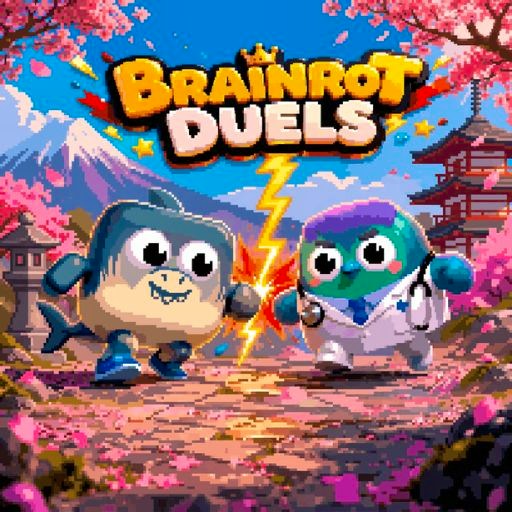
Brainrot Auto Fight begins with a choice of opponents rather than an immediate attack. Two characters occupy opposite sides of a selection screen, and separate arrows let you change the fighters and the arena. The first useful goal is simple: arrange a matchup you can recognize, then open the battle. This makes the selection screen part of the experience instead of a menu to rush past.
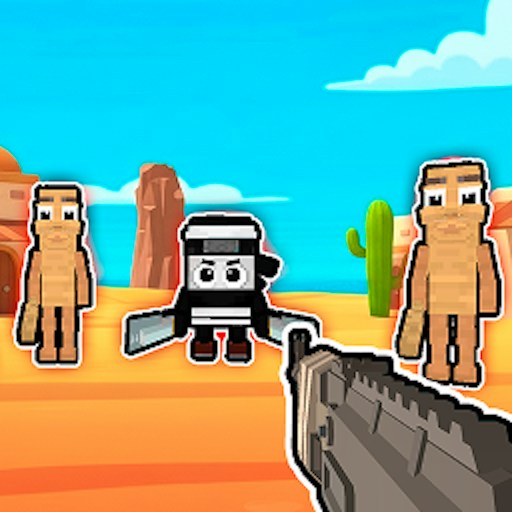
The title can be misleading if you read “Auto Fight” as a promise that everything happens without you. The combat scene displays health bars and action controls. Our recorded check reached that scene, but did not establish whether a complete fight resolves automatically or how each attack works. Use the visible interface as your starting point. Treat the automatic-battle claim as something to investigate, not as a confirmed rule.
The Meme Behind Brainrot Auto Fight
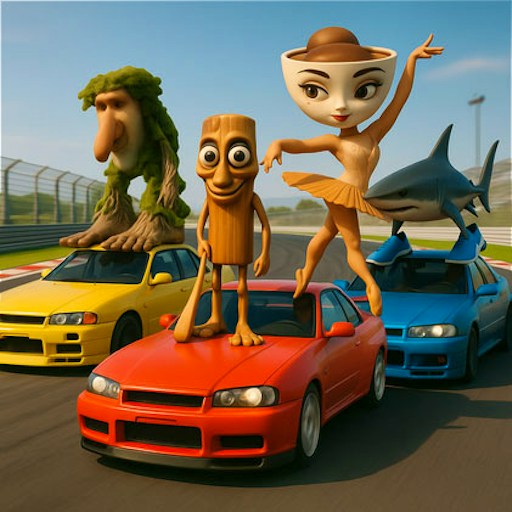
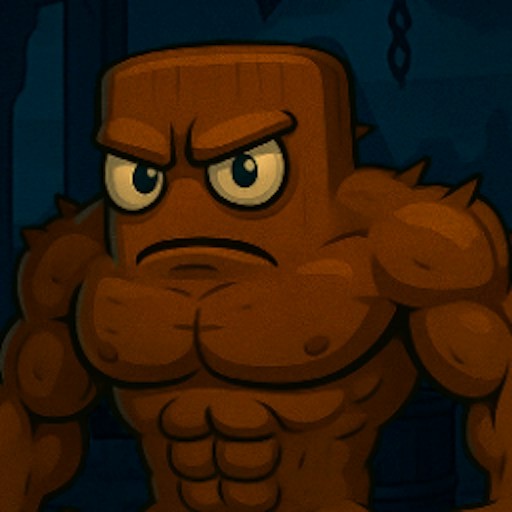
The wooden Tung Tung Sahur was one of the characters selected during our desktop check. Putting a recognizable character opposite another unusual fighter is the main visual joke. You do not need to know the characters' backstories to understand the setup: there are two sides, a backdrop, and a button that moves the selected pair into combat.
A character's appearance is not a reliable description of its abilities. A larger silhouette does not prove more health, and a familiar character does not establish an advantage. Pick a pair you can tell apart easily, especially while learning the controls. That is a readability recommendation, not a claim that one fighter is stronger.
How to Play Brainrot Auto Fight
Press Play on this page and allow the provider's player to open. Complete any choices presented by the provider before looking for the game's selection screen. Once the two fighters appear, pause before pressing several arrows. Identify the controls around the background and those beside the individual characters. Changing one thing at a time makes it easier to see which button controls which part of the scene.
Use the left and right selection arrows to change the arena. Our check included a change to a forest background. Then use the up and down arrows beside a fighter to change that side's character. Keep the other side unchanged while comparing options. If you change both fighters and the arena together, you lose a clear reference for what each control just did.
For an opening attempt, focus on reaching and understanding the combat screen. Choose two visually different fighters, choose a backdrop, and click the crossed-swords button. Look for the health bars and the row of action buttons before testing an input. The crossed-swords button was observed opening combat; it is not a verified shortcut to a finished match.
Next, compare one input with one visible response. If you try a movement button, watch the fighter's position. If you try an attack icon, look for an animation and any change in the opposing health bar. These are useful things to observe, rather than outcomes we have already verified. Avoid combining several buttons immediately: if something happens, it will be harder to tell which input caused it.
If nothing responds, first make sure you are interacting inside the game window and that no provider prompt covers it. Give one input another deliberate attempt. Reloading is a later option because it can discard the current setup. We have not verified that a selected matchup or a battle in progress survives a reload.
Controls
- Mouse: interact with selection arrows and menu buttons.
- Left and right selection arrows: change the arena.
- Up and down arrows beside a fighter: change that fighter.
- Crossed swords: open the combat scene.
- Combat icons: the scene shows movement and action controls; individual outcomes remain unverified in our record.
- Touchscreen: physical-phone play has not been checked here. Visible buttons alone do not establish reliable touch support.
Tips & Tricks
- Changing an arena was observed changing the background. That does not prove a change in difficulty, collision behavior, or damage. Similarly, changing a character confirms the selection works, but says nothing about balance. Keep those distinctions in mind when comparing two attempts. Otherwise, a difference in your inputs can look like a hidden character bonus.
- The health bars provide something concrete to inspect during a fight. Watch which bar changes and what happened immediately before it. Do not assume a particular hit removes a fixed amount of health until you can repeat the result. Our check did not establish damage values, combos, shield timing, or a winning strategy, so this guide does not invent them.
- If the icons are difficult to distinguish, use the website's Expand control to give the player more space. Expansion changes the space available to the game; it does not add missing game features. A keyboard-and-mouse desktop is the environment covered by the existing observation. Treat a phone attempt as an additional compatibility question, not as an equivalent verified experience.
Why Play Brainrot Auto Fight Here
Choose this entry when the appeal is arranging a strange character face-off and exploring its combat interface. The selection choices give you a clear first activity even before the battle. If you specifically want a proven hands-off battle loop or a detailed competitive strategy guide, the current evidence does not establish either. Read that limitation before committing to a longer session.
For a different type of character interaction, browse the Tung Tung Sahur collection. For a slower matching activity, read the current check note on Merge Fellas Italian Brainrot. Its guide describes a different puzzle format, but its present playability and input status still need confirmation. Neither link is a promise that every device or network will run the game.