About Ninja Brainrot Slice
Ninja Brainrot Slice gives the familiar slicing arcade format a cast of meme characters. Targets rise into a wooden play area, and dragging the mouse draws a bright blade trail across them. A successful slice adds to the score in the upper-left corner, with a separate BEST display below it.
The tutorial warns against cutting bombs and letting targets fall without being sliced. Three cross markers sit near the top of the play area to show missed-target danger. The short rounds reward watching what is about to enter your path, rather than sweeping the entire screen without looking.
Meme Characters as Arcade Targets
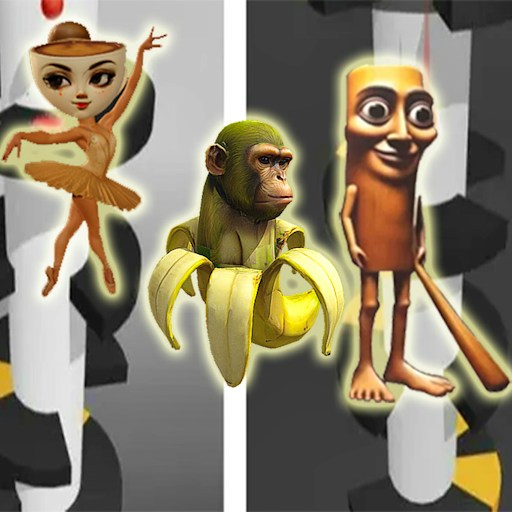
The wooden face, shark, and crocodile imagery moves from static meme pictures into a reflex game. Their shapes become targets in a wooden arena, with a blade trail and score replacing the usual chase or quiz format.
How to Play Ninja Brainrot Slice
After the platform starts, click PLAY on the small game splash screen.
Use the triangle button on the title screen, choose English, and read the tutorial. Select TAP TO CONTINUE to begin the round.
Hold the mouse button and drag through a flying character. The white trail shows the path your blade follows.
Watch the score for confirmation that a slice counted. Avoid the bombs described by the tutorial and keep an eye on the cross markers.
At GAME OVER, use the circular arrow to try another round or the house icon to return to the menu.
Controls
- Hold and drag the mouse: Draw the slicing trail.
- Triangle: Begin the game setup.
- Circular arrow: Restart after a round.
- Music-note button: Toggle the game audio setting.
Tips & Tricks
- Aim a short swipe through a visible target before attempting wider sweeps.
- Leave room to avoid a bomb instead of dragging continuously across every object.
- Wait for the round to begin before judging your first swipe.
- Recheck the music button when you restart if you want a quieter game.
Learn the blade trail with one target
Hold the mouse button and drag through a visible target to create the slicing trail. Begin with a short stroke whose path you can see clearly. Then compare the target, the trail, and the score display. This gives you a reference for the interaction before attempting a wide sweep through several objects. The tutorial's warning about bombs makes the space beside a target part of the decision, not just the target itself.
Release the mouse after the intended stroke. A long continuous drag can carry the blade into an object you did not mean to cut. Moving the pointer back without drawing a trail gives you a chance to choose the next path deliberately. This guide does not establish an exact combo window or a bonus for a particular stroke shape, so it focuses on readable inputs rather than a supposed scoring trick.
Balance missed targets against unsafe swings
The three cross markers indicate missed-target danger in the opening interface. Letting a target fall and cutting a bomb are different risks, and the tutorial warns about both. Look at which objects are entering the same area before drawing. A target that is easy to reach may still have an unsafe object close to the path you planned.
Choose a stroke that passes through the intended object without unnecessarily crossing the whole playfield. If a round ends, recall whether the last action was a missed target, a bomb contact, or another event. Do not assume every failure has the same cause. Watching the markers and result feedback helps you decide whether to work on timing or on a narrower, more selective blade path.
Use the result to set one practice goal
The score and BEST displays provide two references, but chasing the best number immediately can encourage hurried inputs. For an opening practice round, try to make each stroke deliberate. On the next round, keep the same goal while reacting a little earlier to rising targets. This creates a meaningful comparison between attempts without assuming that every new high score proves a better technique.
The circular arrow restarts after a round. Check the music-note setting again if sound matters to you, since an observed icon state does not establish all restart or advertising-audio behavior. The documented scope concerns the opening slicing interaction and visible feedback, not a complete inventory of targets or every score rule. A mouse-held swipe was checked on desktop; real-phone gestures and all later difficulty changes remain separate questions.
Why Play Ninja Brainrot Slice Here
Choose this entry for mouse-driven arcade rounds. The startup guide helps you get through its separate splash, language choice, and tutorial screens before playing.